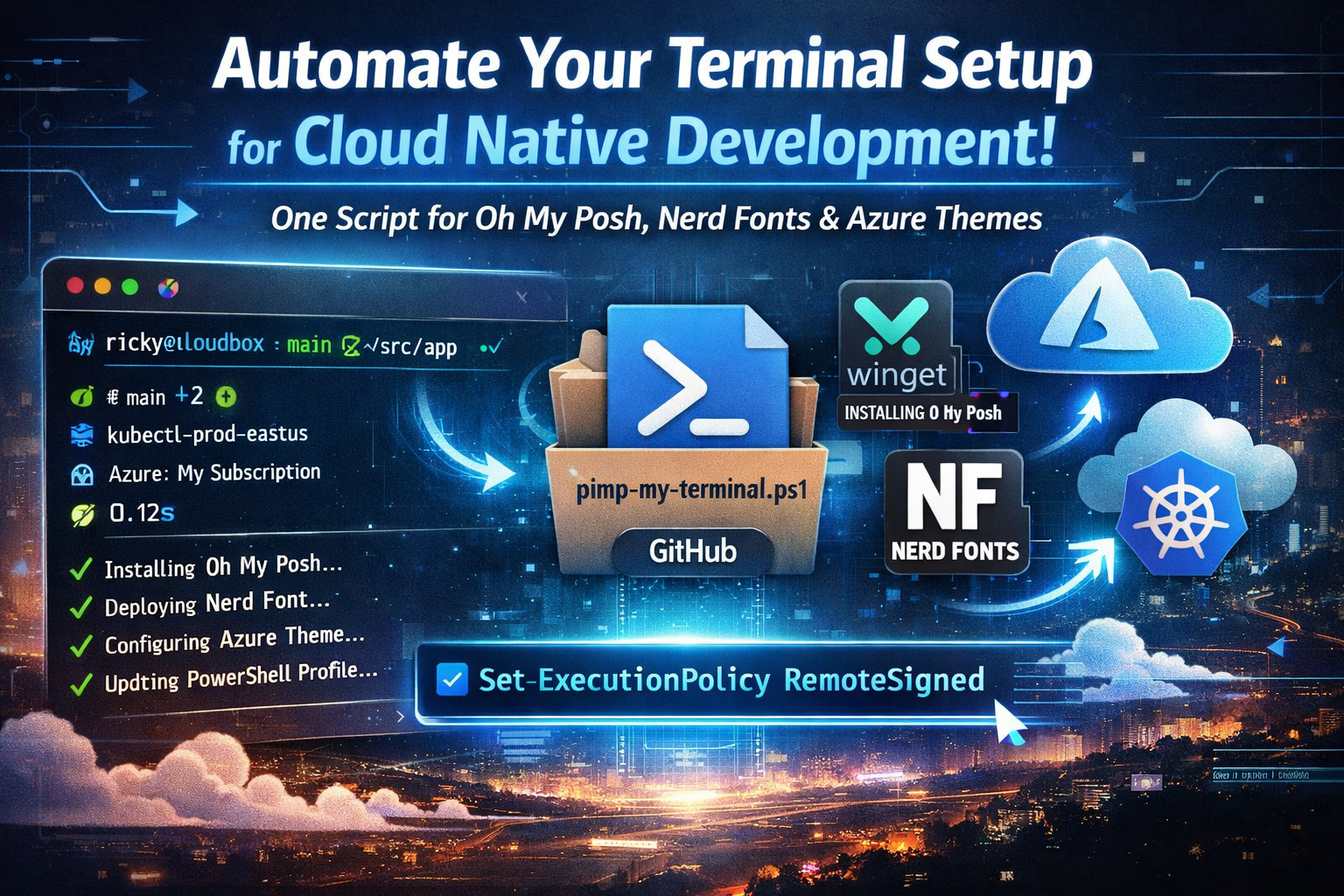
Pimp My Terminal - Terminal Customization with Oh My Posh - A Cloud Native Terminal Setup
🎯 TL;DR: Automated Oh My Posh Terminal Setup for Cloud Native Development
Every new machine or fresh Windows install means reconfiguring your terminal environment from scratch. Problem: Manually setting up Oh My Posh, installing Nerd Fonts, and configuring custom themes is tedious and error-prone across multiple machines.
Solution: (A single PowerShell script available on GitHub https://github.com/Ricky-G/script-library/blob/main/pimp-my-terminal.ps1) that automates the entire process - installing Oh My Posh via winget, deploying a Nerd Font, Terminal-Icons module, creating a custom “Cloud Native Azure” theme optimized for Kubernetes and Azure workflows, and configuring your PowerShell profile with PSReadLine enhancements.
Prerequisites: Enable script execution with
Set-ExecutionPolicy -ExecutionPolicy RemoteSigned -Scope CurrentUserbefore running. This approach transforms the multi-hour setup process into a one-command operation, providing immediate visual context for Git branches, Kubernetes clusters, Azure subscriptions, and command execution times - critical information for modern cloud native development.
Recently, I found myself setting up yet another development machine, and as I stared at the blank PowerShell terminal, I realized I’d reached my limit with manual terminal configuration. Every new machine or clean install meant the same tedious process: download Oh My Posh, find a Nerd Font installer, copy configuration files, edit PowerShell profiles, and spend 30 minutes getting everything just right.
The frustration wasn’t just about aesthetics - a properly configured terminal is a productivity multiplier. When you’re constantly switching between multiple Git repositories, Kubernetes clusters, and Azure subscriptions throughout the day, having that contextual information immediately visible saves countless keystrokes and eliminates mental overhead.
This blog post shares my automated solution: a single PowerShell script that takes a bare Windows terminal and transforms it into a fully-configured, cloud native-ready development environment in under 5 minutes. Whether you’re setting up a new machine, rebuilding after a Windows update disaster, or just want to standardize terminal configuration across your team, this automation eliminates the manual work.

Quick Start - Get Up and Running in 5 Minutes
Want to skip the details and just get started? Here’s everything you need to run the automation script:
Step 1: Enable Script Execution
Open PowerShell as Administrator and run:
1 | Set-ExecutionPolicy -ExecutionPolicy RemoteSigned -Scope CurrentUser |
When prompted, type Y and press Enter.
Step 2: Download and Run the Script
1 | # Download and run the automation script |
The script will automatically install:
- ✅ Oh My Posh via winget
- ✅ MesloLGM Nerd Font
- ✅ Terminal-Icons PowerShell module
- ✅ Cloud Native Azure theme
- ✅ PSReadLine enhancements
- ✅ Custom keyboard shortcuts
Step 3: Configure Your Terminal Font
After the script completes, configure your terminal font:
Windows Terminal:
- Open Settings (
Ctrl + ,) - Go to Profiles → Defaults → Appearance
- Set Font face to:
MesloLGM Nerd Font - Save and restart terminal
VS Code:
- Open Settings (
Ctrl + ,) - Search for “terminal font”
- Set Terminal › Integrated: Font Family to:
MesloLGM Nerd Font
Done! Open a new terminal and enjoy your beautiful, cloud native-ready prompt.
Understanding Oh My Posh: The Modern Prompt Engine
Before diving into the automation, it’s worth understanding what Oh My Posh brings to the table and why it’s become the de facto standard for PowerShell prompt customization.
What Is Oh My Posh?
Oh My Posh is a custom prompt theme engine that works across multiple shells including PowerShell, Bash, Zsh, Fish, and more. Originally inspired by the popular Oh My Zsh project for Linux/macOS, Oh My Posh brings the same level of customization and visual polish to Windows terminals while maintaining cross-platform compatibility.
The key differentiator of Oh My Posh is its segment-based architecture. Rather than being a monolithic prompt generator, it provides a framework for composing different “segments” of information into your prompt. Each segment represents a different piece of contextual information:
Version Control Segments: Display Git branch names, ahead/behind status, working directory changes, stash counts, and more. Supports multiple version control systems.
Cloud Context Segments: Show your active Kubernetes cluster and namespace, AWS profile, Azure subscription, or Google Cloud project. Essential for multi-cloud development.
Development Environment Segments: Display programming language versions (Python, Node.js, Go, .NET), virtual environment status, package manager context, and more.
System Information Segments: Show current directory, execution time of the last command, error status, battery level, and system load.
The Nerd Fonts Requirement
One aspect of Oh My Posh that initially confuses newcomers is the requirement for Nerd Fonts. Standard fonts don’t include the special glyphs and icons that Oh My Posh uses to display information compactly and beautifully.
Nerd Fonts are patches of popular programming fonts that add thousands of additional glyphs from various icon sets including:
- Font Awesome icons
- Devicons for programming languages
- Octicons from GitHub
- Material Design icons
- Weather icons
- Powerline extra symbols
Without a Nerd Font installed, you’ll see blank squares or question marks instead of the beautiful icons that make Oh My Posh themes shine. This is why the installation script specifically handles font installation as a critical step.
The Solution: Automated Setup Script
The core idea behind this automation is simple: replicate exactly what you’d do manually, but in a repeatable, version-controlled script that can be run on any Windows machine. The script handles five critical steps in sequence.
What The Script Installs and Configures
The PowerShell script automates the installation and configuration of several components:
| Step | Component | Purpose |
|---|---|---|
| 1 | Oh My Posh | Prompt theme engine that makes your terminal beautiful and informative |
| 2 | Meslo Nerd Font | Special font with icons and glyphs required for theme display |
| 3 | Terminal-Icons Module | PowerShell module that shows file/folder icons when you run ls or Get-ChildItem |
| 4 | Custom Theme | Cloud Native Azure theme optimized for Kubernetes and Azure workflows |
| 5 | PowerShell Profile | Configures everything to load automatically on every terminal session |
PowerShell Profile Enhancements
The script creates a comprehensive PowerShell profile ($PROFILE) that loads automatically every time you open a terminal:
| Feature | Component | Benefit |
|---|---|---|
| Oh My Posh Theme | Cloud Native Azure theme | Beautiful prompt with contextual information at a glance |
| Terminal-Icons | File type icons | Quickly identify file types: 📁 folders, 🐍 Python files, 📄 docs, etc. |
| PSReadLine History | ↑ / ↓ arrow keys | Search command history based on what you’ve typed |
| PSReadLine Predictions | Auto-suggestions | Shows grayed-out suggestions from history as you type |
| F7 History Grid | F7 key | Opens searchable popup of entire command history |
| Dotnet Shortcuts | Ctrl+Shift+B / Ctrl+Shift+T | Instantly run dotnet build and dotnet test |
| Tab Completion | Winget & Dotnet | Intelligent tab completion for package managers |
PSReadLine: Enhanced Command-Line Editing
PSReadLine is a PowerShell module that dramatically improves command-line editing. The script configures these productivity features:
| Feature | Shortcut | Description | Example Use Case |
|---|---|---|---|
| History Search | ↑ / ↓ | Searches history based on current input | Type git then press ↑ to cycle through all previous git commands |
| Inline Predictions | (automatic) | Shows grayed-out suggestions from history | Faster command entry - just press → to accept |
| History Grid | F7 | Opens searchable popup of command history | Visual history browsing - select any command to insert |
| Quick Build | Ctrl+Shift+B | Instantly runs dotnet build | One keystroke to build your .NET project |
| Quick Test | Ctrl+Shift+T | Instantly runs dotnet test | One keystroke to run your test suite |
These features work together to minimize typing and maximize efficiency. For example, if you previously ran kubectl get pods -n production, you can start typing kub and press ↑ to find it immediately, or wait for the inline prediction to appear and press → to accept it.
Exploring Oh My Posh Themes
Before we dive into my custom theme, it’s worth exploring the extensive theme library that Oh My Posh provides out of the box. The project includes over 200 pre-built themes ranging from minimal single-line prompts to elaborate multi-line displays with extensive system information.
Browsing the Theme Gallery
Oh My Posh provides an excellent visual gallery where you can see screenshots of all available themes:
👉 https://ohmyposh.dev/docs/themes
The gallery is searchable and filterable, making it easy to find themes that match your preferences:
Minimal Themes: Clean, single-line prompts with just essential information (agnoster, paradox, clean-detailed)
Powerline Themes: Classic powerline-style prompts with angled segments and rich colors (powerlevel10k_rainbow, hotstick.minimal, jandedobbeleer)
Cloud-Native Themes: Themes specifically designed for cloud development with Kubernetes and Azure context (cloud-native-azure, night-owl, atomic)
Language-Specific Themes: Optimized for specific programming languages or frameworks (kushal, amro, lambda)
Fun and Whimsical: Themes with unique character or personality (di4am0nd, emodipt-extend, iterm2)
Testing Themes Before Committing
Oh My Posh makes it easy to preview themes before making them permanent:
1 | # Preview a specific theme temporarily |
This is particularly useful when setting up a new machine - you can quickly cycle through themes to find one that resonates with your workflow before committing to a permanent configuration.
The Cloud Native Azure Theme: Design Philosophy
The script uses the official Cloud Native Azure theme from Oh My Posh. It’s specifically designed for developers working in the Azure and Kubernetes ecosystem.
What The Theme Displays
At a glance, your prompt shows comprehensive contextual information:
| Segment | Icon | Information Displayed | Why It’s Useful |
|---|---|---|---|
| Session | 👤 | Username & hostname | Know which machine/user you’re logged in as |
| Path | 📁 | Current directory | Always know where you are in the filesystem |
| Git | 🔀 | Branch, status, ahead/behind | See uncommitted changes and unpushed commits at a glance |
| Status | ✅/❌ | Last command success/failure | Immediately know if your last command worked |
| Kubernetes | ☸️ | Cluster name & namespace | Prevent running commands against the wrong cluster |
| Azure | ☁️ | Active subscription name | Know which Azure subscription is active |
| Battery | 🔋 | Charge level | Keep an eye on laptop battery during long sessions |
| Time | 🕐 | Current time | Timestamp your terminal sessions |
Theme Color Scheme
The theme uses carefully chosen colors for instant visual recognition:
| Segment | Color | Hex Code | Purpose |
|---|---|---|---|
| Session | Purple | #c386f1 | User context |
| Path | Pink | #ff479c | Navigation |
| Git (clean) | Yellow | #fffb38 | Version control (clean state) |
| Git (dirty) | Orange | #FF9248 | Version control (uncommitted changes) |
| Kubernetes | Yellow | #ebcc34 | Cloud infrastructure |
| Azure | Light Blue | #9ec3f0 | Cloud subscription |
| Status (success) | Teal | #2e9599 | Success indicator |
| Status (error) | Red | #f1184c | Error indicator |
While Oh My Posh ships with many excellent themes, this one is specifically optimized for cloud native development workflows. The design philosophy centers on three core principles:
Priority Information First
The most critical contextual information - path, Git status, Kubernetes context, and Azure subscription - is always visible without requiring any additional commands. This eliminates the “where am I?” moment that costs seconds of mental processing dozens of times per day.
Visual Hierarchy Through Color
The theme uses the official Azure brand colors strategically:
- Azure Blue (#0078D4) for operating system and Azure context
- Cyan (#00A4EF) for file path navigation
- Green (#7FBA00) for Git status with dynamic background colors indicating repository state
- Kubernetes Blue (#326CE5) for cluster context
- Gray (#505050) for secondary information like execution time
This color-coding creates instant visual recognition - your eyes learn to find specific information based on color alone.
Cloud Native Workflow Optimization
The theme specifically addresses common scenarios in cloud native development:
Multi-Cluster Scenarios: When working with development, staging, and production Kubernetes clusters, the prominent cluster name prevents accidentally running destructive commands in production.
Multi-Subscription Development: Azure developers often switch between client subscriptions, personal subscriptions, or different environments. The Azure segment shows which subscription is active to prevent resource creation in the wrong tenant.
Git-Heavy Workflows: With branch name, ahead/behind indicators, working directory changes, staging status, and stash count all visible, you have complete Git situational awareness without running git status.
Theme Anatomy: Understanding the Configuration
The Cloud Native Azure theme is defined as a JSON configuration file that Oh My Posh parses to render your prompt. Understanding this structure allows you to customize the theme to your specific needs.
Block Structure
The theme uses Oh My Posh’s block system to organize segments into logical groupings:
Block 1 (Left-Aligned): Contains the primary context segments that appear on the main prompt line:
- Operating System indicator
- Current path with folder-style display
- Git repository information with status
Block 2 (Right-Aligned): Displays cloud and infrastructure context:
- Kubernetes cluster and namespace
- Azure subscription name
- Command execution time
Block 3 (Left-Aligned, New Line): Simple prompt character for command entry
This three-block structure creates a balanced layout where essential information doesn’t crowd the area where you’re typing commands, while cloud context is visible but not intrusive.
Segment Configuration Details
Each segment in the theme has specific configuration properties that control its behavior and appearance:
1 | { |
Breaking down this Kubernetes segment:
Type Property: Specifies which Oh My Posh segment provider to use (kubectl for Kubernetes context)
Style and Powerline Symbol: Creates the angled transitions between segments that give the prompt its distinctive look
Color Configuration: Foreground and background colors using hex codes for precise brand matching
Template String: Defines what information to display using Go template syntax with conditional logic
Properties: Segment-specific settings like parse_kubeconfig which tells the segment to read from your kubectl config file
Dynamic Git Status Indicators
The Git segment includes sophisticated logic for changing appearance based on repository state:
1 | "background_templates": [ |
These background templates create visual warnings:
- Yellow (#FFB900): Uncommitted changes in working directory or staging area
- Orange/Red (#F25022): Branch is behind the remote (need to pull)
- Purple (#B4009E): Branch is ahead of remote (need to push)
This color-coding provides instant feedback about repository state without reading the status text.
The Complete Automation Script
The full automation script is maintained in a GitHub repository for easy access and version control. You can find the complete, up-to-date script here:
📜 Script Location: https://github.com/Ricky-G/script-library/blob/main/pimp-my-terminal.ps1
The script handles the entire setup process including:
- Oh My Posh installation via winget
- Nerd Font (MesloLGM) installation
- Terminal-Icons PowerShell module installation
- Cloud Native Azure theme configuration
- PowerShell profile setup with PSReadLine enhancements
- Custom keyboard shortcuts for dotnet commands
- Intelligent tab completion for winget and dotnet CLI
Quick Start
To run the script, open PowerShell as Administrator and execute:
1 | # Download and run the script directly |
Or if you’ve cloned the repository locally:
1 | # Run from local clone |
Script Breakdown: Key Components
The automation script includes several critical sections that ensure a smooth, repeatable setup process. Let’s examine the key components:
Administrative Privileges Requirement
1 | #Requires -RunAsAdministrator |
The script requires administrative privileges for two reasons:
- Font Installation: Installing system-wide fonts requires elevated permissions to write to
C:\Windows\Fonts - Winget Operations: While winget can run without admin rights, some installations require elevation for proper PATH configuration
If you run the script without elevation, PowerShell will automatically prompt for admin credentials before execution.
Winget Installation with Accept Flags
1 | winget install JanDeDobbeleer.OhMyPosh -s winget --accept-package-agreements --accept-source-agreements |
The --accept-package-agreements and --accept-source-agreements flags automate the acceptance of license terms, enabling the script to run non-interactively. This is crucial for CI/CD scenarios or remote machine setup where manual interaction isn’t possible.
The -s winget parameter explicitly specifies the winget repository, preventing potential conflicts if you have multiple package sources configured.
Environment Path Refresh
1 | $env:Path = [System.Environment]::GetEnvironmentVariable("Path","Machine") + ";" + [System.Environment]::GetEnvironmentVariable("Path","User") |
This is a critical step that’s often overlooked in automation scripts. When winget installs Oh My Posh, it modifies the system PATH variable, but PowerShell sessions don’t automatically refresh their environment. This line explicitly reloads the PATH, making the oh-my-posh command immediately available without requiring a terminal restart.
Without this refresh, the subsequent oh-my-posh font install command would fail with a “command not found” error.
Terminal-Icons Module Installation
1 | Install-Module -Name Terminal-Icons -Repository PSGallery -Force |
The script also installs the Terminal-Icons module, which adds beautiful file type icons to your directory listings. When you run ls or Get-ChildItem, you’ll see:
- 📁 Folder icons for directories
- 🐍 Python icon for .py files
- 📄 Document icons for text files
- ⚙️ Config icons for .json, .xml, .yaml files
- And many more language-specific icons
Nerd Font Installation
1 | oh-my-posh font install Meslo |
Oh My Posh includes a built-in font installer that downloads and installs Nerd Fonts from their GitHub releases. The Meslo font (MesloLGM Nerd Font) is recommended because:
- Excellent readability at small and large sizes
- Wide character coverage including all necessary glyphs
- Good distinction between similar characters (1, l, I, 0, O)
- Proper line height and spacing for terminal use
Alternative Nerd Fonts you might consider:
CascadiaCode- Microsoft’s open-source programming fontFiraCode- Popular font with extensive ligature supportJetBrainsMono- Optimized for long coding sessionsHack- Minimal, clean appearance
Profile Configuration with Idempotency
The script checks if Oh My Posh is already configured before making changes, allowing safe repeated execution:
1 | if (Test-Path $PROFILE) { |
This idempotency is essential for:
- Updating the theme configuration without duplicating profile entries
- Re-running the script after failed installations
- Using the script in configuration management systems
Step-by-Step Implementation Guide
Prerequisites and Preparation
Before running the script, ensure you have:
5. Click Appearance in the sub-menu
6. Under Font face, select MesloLGM Nerd Font
7. Optionally adjust Font size (I recommend 10-11pt for readability)
8. Click Save
Pro Tip: You can also configure this per-profile (PowerShell, Command Prompt, Ubuntu, etc.) if you want different fonts for different shells. However, setting it in Defaults applies to all profiles consistently.
Visual Studio Code Terminal Configuration
If you spend significant time in VS Code’s integrated terminal, you’ll want the same beautiful prompt there:
- Open VS Code
- Press
Ctrl + ,to open Settings - Search for
terminal font - Find Terminal › Integrated: Font Family
- Enter:
MesloLGM Nerd Font - Restart any open terminal instances
Alternatively, edit your settings.json directly:
1 | { |
Verifying Font Installation
After configuring your terminal, restart it and open a new PowerShell session. You should see the themed prompt with proper icons. If you see squares, question marks, or missing characters, the font isn’t properly applied.
Common fixes:
- Ensure you spelled the font name exactly:
MesloLGM Nerd Font(not MesloLGM NF) - Try restarting Windows Terminal completely (close all windows)
- Verify the font appears in Windows Settings → Personalization → Fonts
Advanced Customization Options
Modifying the Theme
The beauty of this automated setup is that your theme is now stored as a JSON file at $HOME\.config\ohmyposh\cloud-native-azure.omp.json. You can modify this file to customize the prompt to your preferences.
Adding Additional Segments
Want to display your Python virtual environment or Node.js version? Add segments to the appropriate block:
1 | { |
Available segment types include: aws, battery, cmake, dart, docker, dotnet, elixir, flutter, go, java, julia, kotlin, lua, node, perl, php, python, ruby, rust, scala, swift, terraform, and many more.
Changing Colors
Modify the foreground and background properties to use your preferred color scheme:
1 | "foreground": "#ffffff", |
You can also use color definitions for dark/light terminal themes:
1 | "foreground": "p:white", |
Adjusting Git Status Indicators
Customize which Git information displays by modifying the template:
1 | "template": " {{ .HEAD }}{{ if .BranchStatus }} {{ .BranchStatus }}{{ end }}{{ if .Working.Changed }} \uf044 {{ .Working.String }}{{ end }} " |
Remove sections you don’t need or add additional information like:
{{ .UpstreamIcon }}- Shows if branch has an upstream{{ .StashCount }}- Number of stashed changes{{ .WorktreeCount }}- Number of worktrees
Creating Multiple Theme Configurations
You might want different themes for different scenarios - perhaps a minimal theme for screen recordings or presentations, and a detailed theme for daily work.
Create multiple theme files:
1 | # Create a minimal theme |
Switch themes by modifying your profile or creating PowerShell functions:
1 | # Add to your PowerShell profile |
Conditional Theme Loading
Load different themes based on context - for example, use a detailed theme on your workstation but a minimal theme when SSH’d into servers:
1 | # In your PowerShell profile |
Keyboard Shortcuts Reference
After setup, you’ll have enhanced keyboard shortcuts available in PowerShell thanks to PSReadLine configuration:
| Shortcut | Action | Description |
|---|---|---|
↑ | History Search Backward | Searches command history based on what you’ve already typed |
↓ | History Search Forward | Continues searching forward through matching history |
F7 | History Grid View | Opens a searchable popup grid of your entire command history |
Ctrl+Shift+B | Dotnet Build | Instantly runs dotnet build in the current directory |
Ctrl+Shift+T | Dotnet Test | Instantly runs dotnet test for your test suite |
Tab | Smart Completion | Context-aware tab completion for winget, dotnet, and more |
→ | Accept Prediction | Accepts the grayed-out inline prediction from history |
Ctrl+RightArrow | Accept Next Word | Accepts only the next word from the prediction |
Using History Search Effectively
The history search feature is particularly powerful for repetitive commands:
Example 1 - Git Commands:
- Type
gitand press↑ - Cycles through all previous git commands
- Much faster than retyping or searching entire history
Example 2 - Kubectl Commands:
- Type
kubectl get pods -nand press↑ - Finds all previous kubectl commands starting with that pattern
- Quickly switch between namespaces you’ve used before
Example 3 - Complex Commands:
- Type the first few characters of a long command
- Press
↑to find it immediately - No need to remember the entire command syntax
PSReadLine Prediction Modes
The script configures PSReadLine to show predictions as you type:
1 | # Predictions appear grayed out based on your command history |
This feature learns from your command patterns and becomes more useful over time as you build up command history.
Customization and Theme Switching
Switching to a Different Theme
To use a different Oh My Posh theme after installation, edit your PowerShell profile:
1 | notepad $PROFILE |
Replace the theme URL with any theme from the themes gallery:
1 | # Example: Switch to 'agnoster' theme |
Adding Custom Keyboard Shortcuts
You can add more PSReadLine shortcuts to your profile:
1 | # Example: Ctrl+Shift+R for dotnet run |
Troubleshooting Common Issues
Oh My Posh Command Not Found
Symptom: After running the script, oh-my-posh command isn’t recognized.
Causes and Fixes:
PATH not refreshed: Close and reopen your terminal, or run:
1
$env:Path = [System.Environment]::GetEnvironmentVariable("Path","Machine") + ";" + [System.Environment]::GetEnvironmentVariable("Path","User")
Winget installation failed: Check if Oh My Posh was actually installed:
1
winget list | Select-String "OhMyPosh"
If not present, manually install:
1
winget install JanDeDobbeleer.OhMyPosh
Installation location issues: Verify the executable location:
1
Get-Command oh-my-posh
Script Execution Is Disabled
Symptom: Error message “running scripts is disabled on this system”
Fix:
1 | Set-ExecutionPolicy -ExecutionPolicy RemoteSigned -Scope CurrentUser |
When prompted, type Y and press Enter. This policy allows locally-created scripts to run while maintaining security for downloaded scripts.
Font Rendering Issues
Symptom: Boxes, question marks, or missing icons in your prompt.
Fixes:
Verify font installation:
- Open Windows Settings → Personalization → Fonts
- Search for “MesloLGM”
- If not present, manually run:
oh-my-posh font install Meslo
Correct font name in terminal:
- The exact font name is
MesloLGM Nerd Font - Some terminals are case-sensitive
- Don’t use abbreviations like “MesloLGM NF”
- The exact font name is
Terminal compatibility:
- Windows Terminal, VS Code, and modern terminals support Nerd Fonts well
- Legacy terminals (cmd.exe window) may have poor support
- Consider upgrading to Windows Terminal
Manual font installation:
If automatic installation fails, download manually:- Go to https://github.com/ryanoasis/nerd-fonts/releases
- Download
Meslo.zip - Extract and right-click the
.ttffiles - Select Install for all users
PSReadLine Version Error
Symptom: Error about -PredictionSource parameter
Fix:
The script includes version checking, but if you manually edited your profile, ensure PSReadLine 2.1+ is installed:
1 | # Check version |
Kubernetes Segment Not Appearing
Symptom: The kubectl segment doesn’t show even though you have kubectl configured.
Causes:
No current context: Run
kubectl config current-contextto verify you have an active contextKubeconfig not in default location: Oh My Posh looks for
~/.kube/config. If you useKUBECONFIGenvironment variable with custom paths, the segment may not find it.Performance optimization: Oh My Posh might disable slow segments. Check if kubectl commands are responsive:
1
Measure-Command { kubectl config current-context }
If this takes more than 500ms, Oh My Posh may timeout the segment.
Azure Segment Not Showing
Symptom: No Azure subscription information in your prompt.
Fixes:
Azure CLI not installed: The segment requires Azure CLI:
1
winget install Microsoft.AzureCLI
Not logged in: Authenticate with Azure:
1
az login
No active subscription: Set a default subscription:
1
az account set --subscription "Your Subscription Name"
Slow Prompt Performance
Symptom: Noticeable delay before prompt appears, especially after pressing Enter.
Common Causes:
Slow Git operations: Large repositories or network-based Git remotes can slow the Git segment. Disable fetch_status for specific repositories:
1
2
3"properties": {
"fetch_status": false
}Multiple cloud segments: Each cloud segment (kubectl, az, aws) makes system calls. Remove segments you don’t actively use.
Network timeouts: If segments query network resources (like Kubernetes API servers), timeouts can cause delays. Consider adjusting timeout settings or removing problematic segments.
Performance Considerations and Optimizations
Segment Caching
Oh My Posh caches segment results to improve performance. You can adjust cache durations in the segment properties:
1 | "properties": { |
This tells the segment to cache results for 5 minutes, reducing repeated system calls.
Selective Segment Enablement
Not every developer needs every segment. Consider creating role-specific variants:
Backend Developers: Focus on Git, Azure, and database context
Frontend Developers: Emphasize Node.js version, Git, and build tool status
DevOps Engineers: Full cloud context with Kubernetes, Azure, and AWS
Full Stack: Balanced approach with programming language versions and cloud context
Async Segment Updates
For segments that make network calls, consider using Oh My Posh’s background update feature to prevent blocking the prompt:
1 | "properties": { |
Wrapping Up
What started as frustration with repeatedly configuring terminals across new machines evolved into a robust automation solution that eliminates setup friction entirely. One PowerShell script, a few minutes of execution time, and your terminal transforms from a blank slate into a fully-configured, cloud native development environment.
The script and theme are opinionated - they reflect my specific workflow and preferences. But that’s the beauty of Oh My Posh’s flexibility. Take this automation as a starting point, customize the theme to match your daily tasks, add or remove segments based on your tech stack, and create your perfect terminal environment.
No more hunting for font installers. No more manually editing profile files. No more copying configuration snippets from old machines. Just run the script, configure your font settings, and get back to building amazing things.
Happy terminal pimping! 🎉
References
Pimp My Terminal - Terminal Customization with Oh My Posh - A Cloud Native Terminal Setup