Pimp My Terminal - Terminal Customization with Oh My Posh - A Cloud Native Terminal Setup

Pimp My Terminal - Terminal Customization with Oh My Posh - A Cloud Native Terminal Setup


🎯 TL;DR: Automated Oh My Posh Terminal Setup for Cloud Native Development

Every new machine or fresh Windows install means reconfiguring your terminal environment from scratch. Problem: Manually setting up Oh My Posh, installing Nerd Fonts, and configuring custom themes is tedious and error-prone across multiple machines.

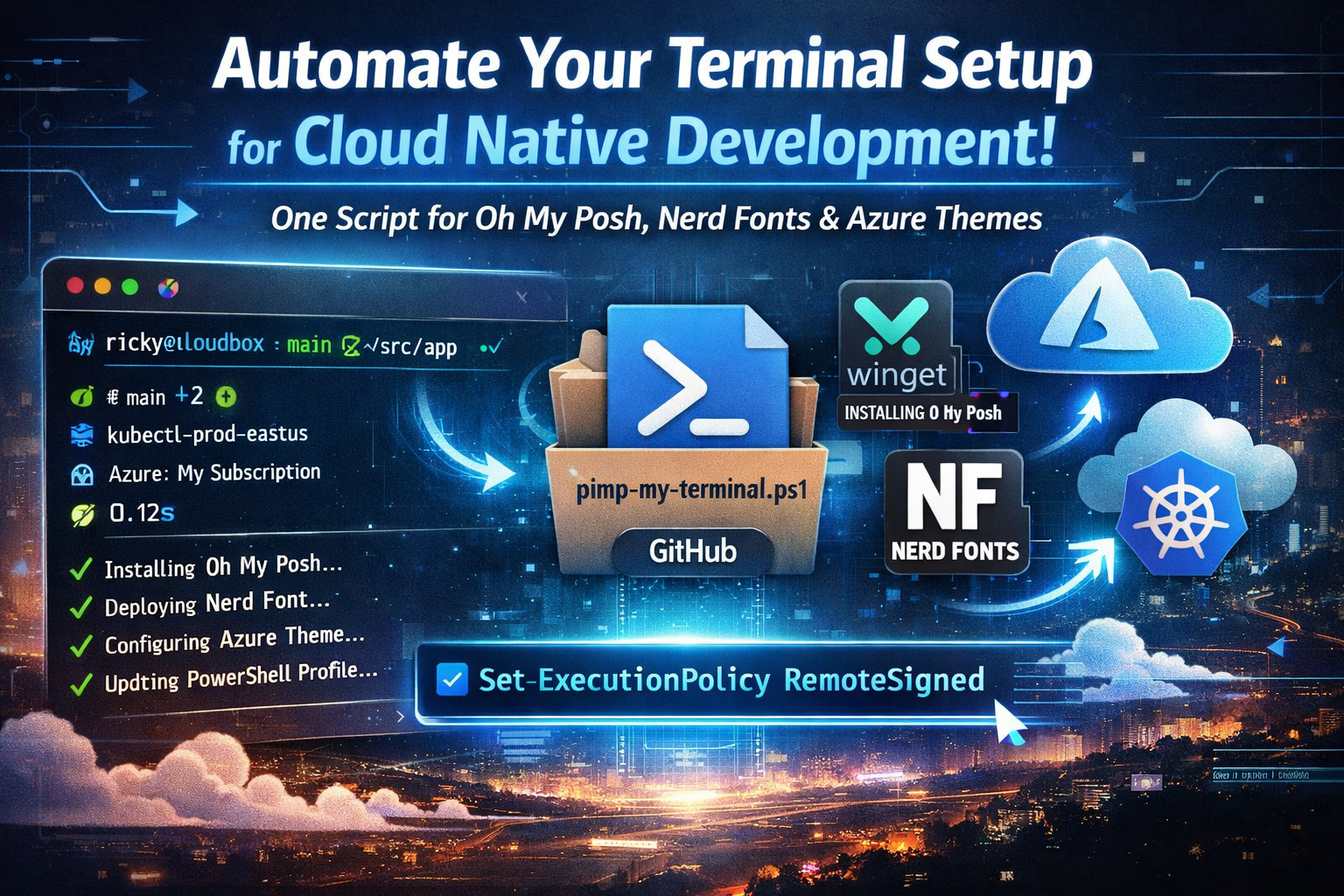
Solution: (A single PowerShell script available on GitHub https://github.com/Ricky-G/script-library/blob/main/pimp-my-terminal.ps1) that automates the entire process - installing Oh My Posh via winget, deploying a Nerd Font, Terminal-Icons module, creating a custom “Cloud Native Azure” theme optimized for Kubernetes and Azure workflows, and configuring your PowerShell profile with PSReadLine enhancements.

Prerequisites: Enable script execution with Set-ExecutionPolicy -ExecutionPolicy RemoteSigned -Scope CurrentUser before running. This approach transforms the multi-hour setup process into a one-command operation, providing immediate visual context for Git branches, Kubernetes clusters, Azure subscriptions, and command execution times - critical information for modern cloud native development.


Recently, I found myself setting up yet another development machine, and as I stared at the blank PowerShell terminal, I realized I’d reached my limit with manual terminal configuration. Every new machine or clean install meant the same tedious process: download Oh My Posh, find a Nerd Font installer, copy configuration files, edit PowerShell profiles, and spend 30 minutes getting everything just right.

The frustration wasn’t just about aesthetics - a properly configured terminal is a productivity multiplier. When you’re constantly switching between multiple Git repositories, Kubernetes clusters, and Azure subscriptions throughout the day, having that contextual information immediately visible saves countless keystrokes and eliminates mental overhead.

This blog post shares my automated solution: a single PowerShell script that takes a bare Windows terminal and transforms it into a fully-configured, cloud native-ready development environment in under 5 minutes. Whether you’re setting up a new machine, rebuilding after a Windows update disaster, or just want to standardize terminal configuration across your team, this automation eliminates the manual work.

Before and After Terminal

Quick Start - Get Up and Running in 5 Minutes

Want to skip the details and just get started? Here’s everything you need to run the automation script:

Step 1: Enable Script Execution

Open PowerShell as Administrator and run:

1
Set-ExecutionPolicy -ExecutionPolicy RemoteSigned -Scope CurrentUser

When prompted, type Y and press Enter.

Step 2: Download and Run the Script

1
2
3
# Download and run the automation script
Invoke-WebRequest -Uri "https://raw.githubusercontent.com/Ricky-G/script-library/main/pimp-my-terminal.ps1" -OutFile "$env:TEMP\pimp-my-terminal.ps1"
& "$env:TEMP\pimp-my-terminal.ps1"

The script will automatically install:

  • ✅ Oh My Posh via winget
  • ✅ MesloLGM Nerd Font
  • ✅ Terminal-Icons PowerShell module
  • ✅ Cloud Native Azure theme
  • ✅ PSReadLine enhancements
  • ✅ Custom keyboard shortcuts

Step 3: Configure Your Terminal Font

After the script completes, configure your terminal font:

Windows Terminal:

  1. Open Settings (Ctrl + ,)
  2. Go to Profiles → Defaults → Appearance
  3. Set Font face to: MesloLGM Nerd Font
  4. Save and restart terminal

VS Code:

  1. Open Settings (Ctrl + ,)
  2. Search for “terminal font”
  3. Set Terminal › Integrated: Font Family to: MesloLGM Nerd Font

Done! Open a new terminal and enjoy your beautiful, cloud native-ready prompt.


Understanding Oh My Posh: The Modern Prompt Engine

Before diving into the automation, it’s worth understanding what Oh My Posh brings to the table and why it’s become the de facto standard for PowerShell prompt customization.

Read more
How We United 8 Developers Across Restricted Environments Using Azure VMs and Dev Containers

How We United 8 Developers Across Restricted Environments Using Azure VMs and Dev Containers


🎯 TL;DR: Distributed Development with Azure VMs and Dev Containers

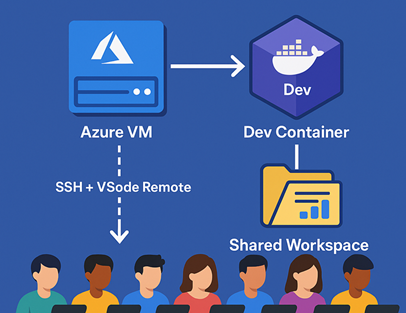
This post details solving a distributed development challenge where 8 developers from different organizations needed to collaborate on an AutoGen AI project - 4 from restricted corporate environments unable to install development tools, and 4 external developers without access to client systems. The solution uses a shared Azure VM (Standard D8s v3) with individual user accounts, certificate-based SSH authentication, and VS Code Remote Development connected to a shared Dev Container environment. The architecture eliminates “works on my machine” issues by providing consistent development environments, shared resources (datasets, models, configs), and enables real-time collaboration.

Implementation highlights: Automated user provisioning scripts, VS Code Remote-SSH configuration, comprehensive devcontainer.json with pre-installed Python 3.12/AutoGen/Azure CLI, shared directory structures, and security hardening with fail2ban and UFW. Development environment setup scripts and configurations documented here


Introduction: When Traditional Solutions Hit a Wall

Last month, I found myself facing a challenge that I’m sure many of you have encountered: How do you enable seamless collaboration for a development team when half of them work in a locked-down environment where they can’t install any development tools, and the other half can’t access the client’s systems?

Our team of eight developers was tasked with building a proof-of-concept (PoC) for an AI-powered agentic system using Microsoft’s AutoGen framework. Here’s the kicker: this was a 3-week PoC sprint bringing together two teams from different organizations who had never worked together before. We needed a collaborative environment that could be spun up quickly, require minimal setup effort, and allow everyone to hit the ground running from day one.

The project requirements were complex enough, but the real challenge? Four developers worked from a highly restricted corporate environment where installing Python, VS Code, or any development tools was strictly prohibited. The remaining four worked from our offices but couldn’t access the client’s internal systems directly.

We tried the usual approaches:

  • RDP connections: Blocked by security policies
  • VPN access: Denied due to compliance requirements
  • Local development with file sharing: Immediate sync issues and “works on my machine” problems
  • Cloud IDEs: Didn’t meet the client’s security requirements

Just when we thought we’d have to resort to the dreaded “develop locally and pray it works in production” approach, we discovered a solution that not only solved our immediate problem but revolutionized how we approach distributed development.

The Architecture That Worked For Us

Here’s a visual representation of what we built, everyone had to work on their personal (non-corporate) laptops for this to work.

flowchart TD
    A["� 8 Developers on Personal Laptops
4 Restricted + 4 External Teams"] B["� SSH + VS Code Remote Connection
Certificate-based Authentication"] C["☁️ Azure VM (Standard D8s v3)
8 vCPUs • 32GB RAM • Ubuntu 22.04"] D["👤 Individual User Accounts
user1, user2, user3... user8"] E["🐳 Shared Dev Container
Python 3.12 + AutoGen + Azure CLI
All Dependencies Pre-installed"] F["📂 Shared Development Resources
• Project Repository
• Datasets & Models
• Configuration Files"] G["✅ Results Achieved
94% Faster Onboarding
$400/month vs $16k laptops
Enhanced Security"] A --> B B --> C C --> D D --> E E --> F F --> G style A fill:#e3f2fd,stroke:#1976d2,stroke-width:3px,color:#000 style B fill:#f3e5f5,stroke:#7b1fa2,stroke-width:3px,color:#000 style C fill:#e1f5fe,stroke:#0277bd,stroke-width:3px,color:#000 style D fill:#fff3e0,stroke:#f57c00,stroke-width:3px,color:#000 style E fill:#f3e5f5,stroke:#7b1fa2,stroke-width:3px,color:#000 style F fill:#fff3e0,stroke:#f57c00,stroke-width:3px,color:#000 style G fill:#e8f5e8,stroke:#388e3c,stroke-width:3px,color:#000

Lets check out how this was built and setup…
Read more