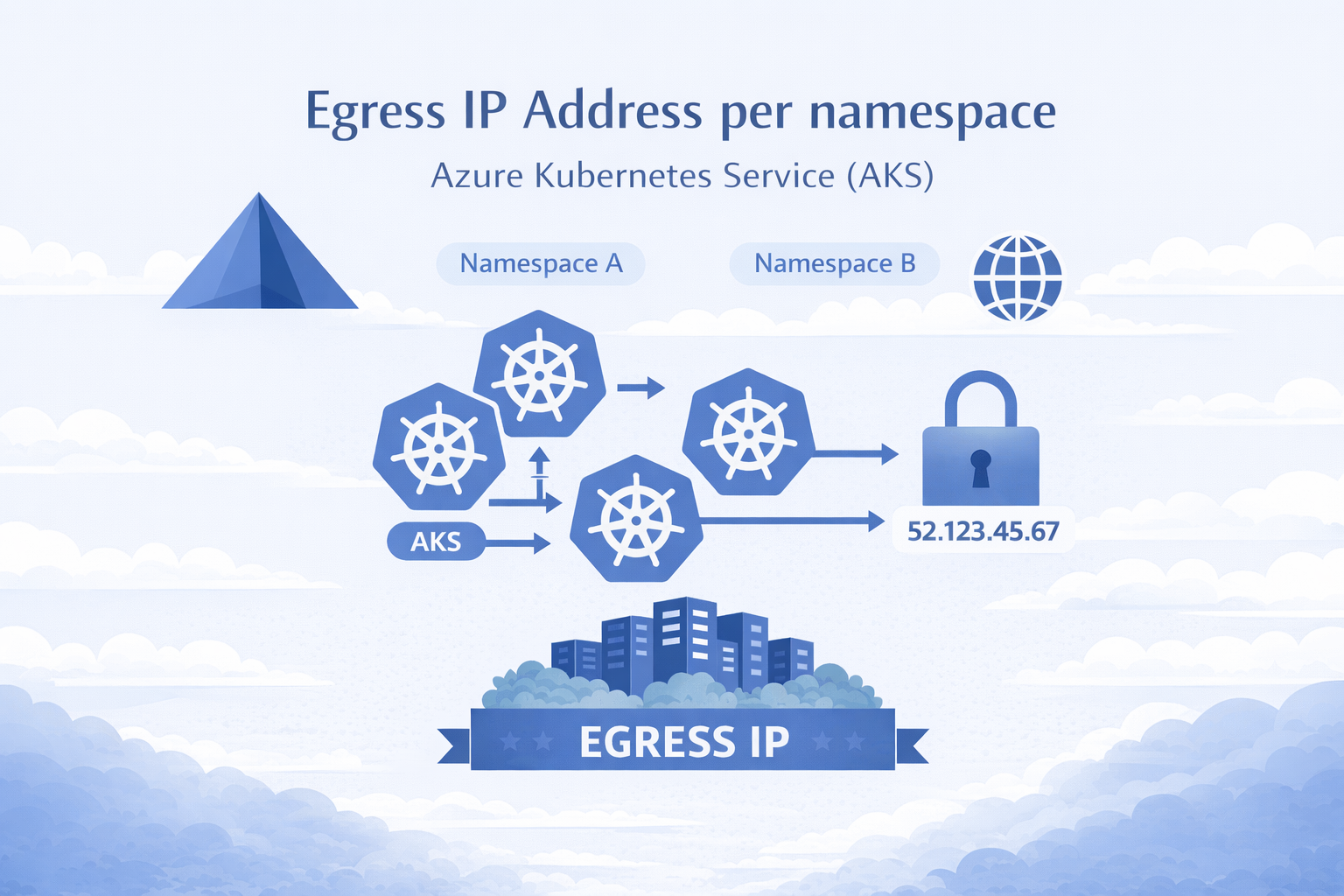
🎯 TL;DR: Unique Static Egress IP per Kubernetes Namespace in AKS
AKS now has a native equivalent to OpenShift’s EgressIP: Static Egress Gateway. One dedicated gateway node pool + a StaticGatewayConfiguration CRD per namespace = stable egress IPs (public or private). No more separate node pools, subnets, and NAT Gateways per namespace.
Pods opt in via annotation, IPs are stable across restarts/upgrades, supports public and private egress, and layers cleanly with Azure Firewall. Requires aks-preview CLI extension and StaticEgressGatewayPreview feature flag. Private IP mode requires Kubernetes 1.34+.
If you’ve used OpenShift’s EgressIP CRD to assign static egress IPs per namespace for firewall allowlisting, you know how critical this is for security compliance. The first question in any OpenShift-to-AKS migration is always: “How do we get per-namespace static egress IPs?”
Until recently, you needed a separate node pool, subnet, and NAT Gateway per namespace. Ten namespaces = ten of each. It didn’t scale.
AKS Static Egress Gateway fixes this: one gateway node pool, one subnet, one CRD per namespace.
graph LR
    A["Namespace A"] --> GW["Gateway Pool"]
    B["Namespace B"] --> GW
    C["Namespace C"] --> GW
    GW -->|"Unique IP per NS"| EXT["External Services"]
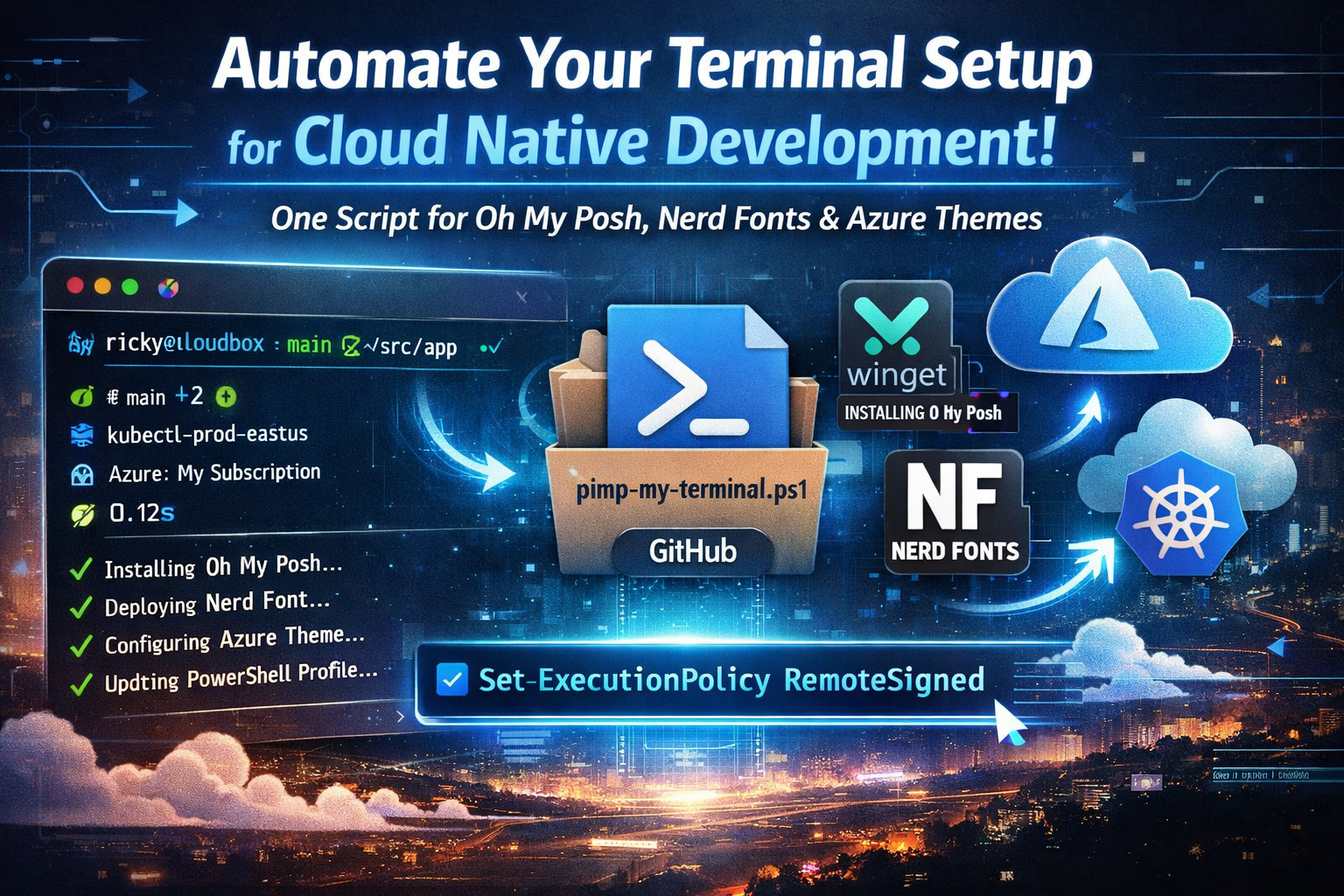
🎯 TL;DR: Automated Oh My Posh Terminal Setup for Cloud Native Development
Every new machine or fresh Windows install means reconfiguring your terminal environment from scratch. Problem: Manually setting up Oh My Posh, installing Nerd Fonts, and configuring custom themes is tedious and error-prone across multiple machines.
Prerequisites: Enable script execution with Set-ExecutionPolicy -ExecutionPolicy RemoteSigned -Scope CurrentUser before running. This approach transforms the multi-hour setup process into a one-command operation, providing immediate visual context for Git branches, Kubernetes clusters, Azure subscriptions, and command execution times - critical information for modern cloud native development.
Recently, I found myself setting up yet another development machine, and as I stared at the blank PowerShell terminal, I realized I’d reached my limit with manual terminal configuration. Every new machine or clean install meant the same tedious process: download Oh My Posh, find a Nerd Font installer, copy configuration files, edit PowerShell profiles, and spend 30 minutes getting everything just right.
The frustration wasn’t just about aesthetics - a properly configured terminal is a productivity multiplier. When you’re constantly switching between multiple Git repositories, Kubernetes clusters, and Azure subscriptions throughout the day, having that contextual information immediately visible saves countless keystrokes and eliminates mental overhead.
This blog post shares my automated solution: a single PowerShell script that takes a bare Windows terminal and transforms it into a fully-configured, cloud native-ready development environment in under 5 minutes. Whether you’re setting up a new machine, rebuilding after a Windows update disaster, or just want to standardize terminal configuration across your team, this automation eliminates the manual work.
Quick Start - Get Up and Running in 5 Minutes
Want to skip the details and just get started? Here’s everything you need to run the automation script:
# Download and run the automation script Invoke-WebRequest-Uri"https://raw.githubusercontent.com/Ricky-G/script-library/main/pimp-my-terminal.ps1"-OutFile"$env:TEMP\pimp-my-terminal.ps1" & "$env:TEMP\pimp-my-terminal.ps1"
The script will automatically install:
✅ Oh My Posh via winget
✅ MesloLGM Nerd Font
✅ Terminal-Icons PowerShell module
✅ Cloud Native Azure theme
✅ PSReadLine enhancements
✅ Custom keyboard shortcuts
Step 3: Configure Your Terminal Font
After the script completes, configure your terminal font:
Windows Terminal:
Open Settings (Ctrl + ,)
Go to Profiles → Defaults → Appearance
Set Font face to: MesloLGM Nerd Font
Save and restart terminal
VS Code:
Open Settings (Ctrl + ,)
Search for “terminal font”
Set Terminal › Integrated: Font Family to: MesloLGM Nerd Font
Done! Open a new terminal and enjoy your beautiful, cloud native-ready prompt.
Understanding Oh My Posh: The Modern Prompt Engine
Before diving into the automation, it’s worth understanding what Oh My Posh brings to the table and why it’s become the de facto standard for PowerShell prompt customization.
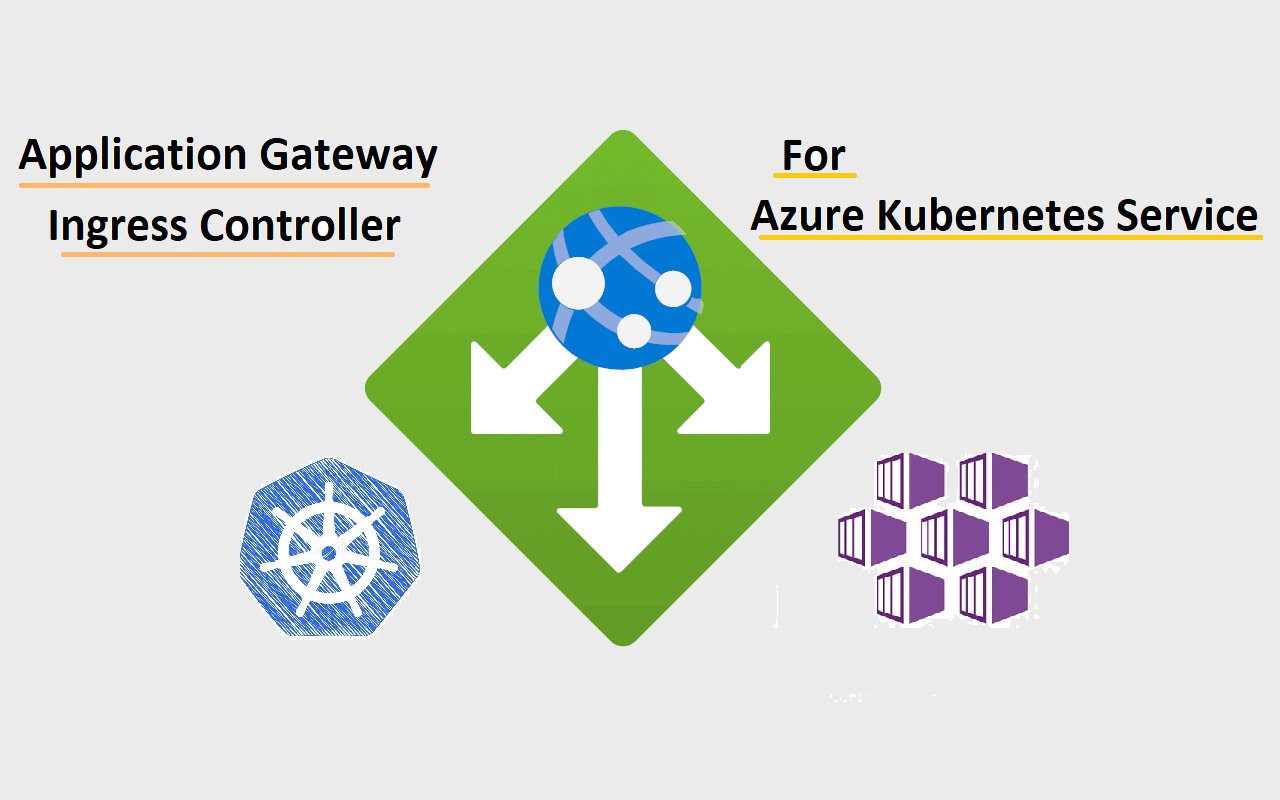
🎯 TL;DR: AGIC Direct Pod Ingress for High-Performance AKS Workloads
AGIC provides direct pod ingress bypassing Kubernetes ClusterIP for up to 50% lower network latency compared to in-cluster solutions. Problem: Traditional ingress controllers add network hops and consume AKS compute resources. Solution: Application Gateway routes directly to pod IPs via Azure Resource Manager integration, offering WAF, SSL termination, and managed updates as AKS add-on. Critical limitation: 100 backend pool limit means 2000+ services require 20 Application Gateways, making cost-effective deployment challenging for large-scale clusters.
Recently I ran into an interesting issue with an AKS cluster running 2000+ services. There is nothing wrong in running 2000+ services that’s what Kubernetes is there for, scale! but the interesting aspect that caught my attention was trying to get the Applicaiton Gateway Ingress Controller (AGIC) to ingress to all these services. I had worked with Istio and NGINX for ingress into AKS with no issues and never AGIC, so I had to try this to see where it worked well, what the advantages are and where the limitations are.
Application Gateway
Application Gateway (App Gateway) is a well-established layer 7 service that has been around for a while, some of the major features are: