The Four Types of GitHub Copilot Agents: Local, Background, Cloud, and Sub-Agents Explained
🎯 TL;DR: Four Agent Types, Four Different Workflows
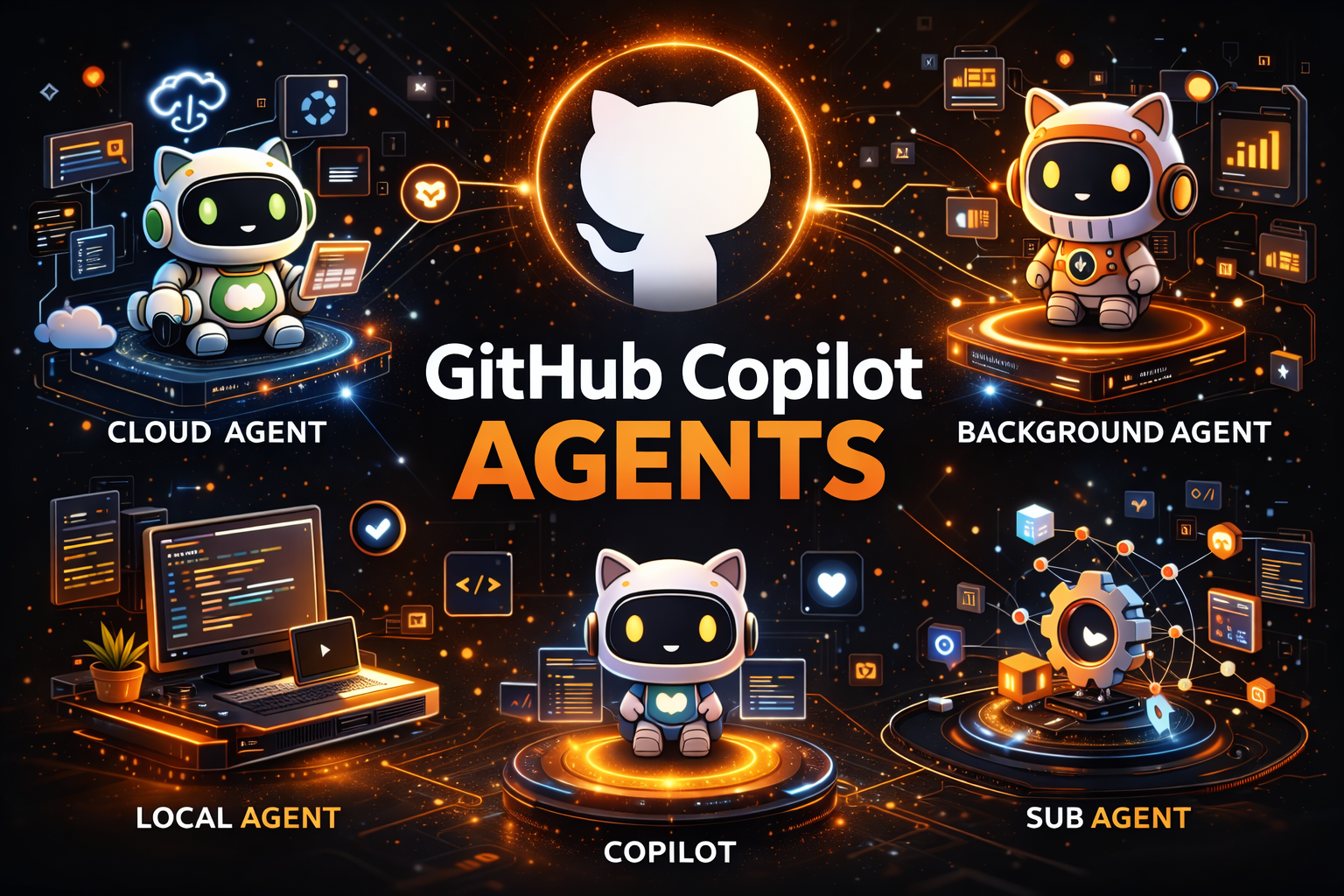
GitHub Copilot in VS Code now supports four distinct agent types, each designed for different workflows and levels of autonomy. Local Agent is your interactive coding partner, running in VS Code with full access to all your tools, MCP servers, and three personas (Agent, Plan, Ask). Coding Agent (Cloud) runs on GitHub’s cloud infrastructure via Actions runners, works fully autonomously on issues, and creates PRs while you’re away. Background Agent (Copilot CLI) runs locally but outside the VS Code process; it survives restarts, supports parallel sessions, and can hand off work to cloud agents with
/delegate. Sub-Agents are the secret weapon for context management, running as isolated subtasks within a parent agent session, keeping the main agent’s context window clean while handling research, analysis, or parallel tasks.Key insight: If you’re using a 1x premium model like Claude Sonnet 4, sub-agent calls are effectively free, making them the most cost-efficient way to scale complex multi-step workflows without burning through your premium request budget.
GitHub Copilot has evolved far beyond simple code completions. With agent mode in VS Code, developers gained an autonomous coding assistant that could plan, execute, and iterate on complex tasks. But as workflows grew more sophisticated, a single agent type wasn’t enough to cover every scenario, from quick interactive debugging to full autonomous issue resolution that runs while you sleep.
Today, GitHub Copilot in VS Code supports four distinct agent types, each optimized for different workflows, contexts, and levels of autonomy. Understanding when to use each one, and how they interact, is the difference between fighting your tools and having them work seamlessly for you.
The Four Agent Types at a Glance
Before diving deep into each agent type, here’s a high-level comparison:
| Feature | Local Agent | Background Agent (Copilot CLI) | Coding Agent (Cloud) | Sub-Agent |
|---|---|---|---|---|
| Where it runs | VS Code (local) | Local machine (outside VS Code) | GitHub Actions runner (cloud) | Within parent agent session |
| How to invoke | Chat view (Ctrl+Alt+I) | Chat dropdown → “Copilot CLI” or terminal copilot | Chat dropdown → “Cloud”, GitHub Issues, PRs, CLI | Auto-invoked by parent agent or #runSubAgent |
| Autonomy | Interactive | Autonomous (local) | Fully autonomous (remote) | Task-scoped |
| Survives VS Code close | ❌ No | ✅ Yes | ✅ Yes | N/A (tied to parent) |
| Access to VS Code tools | ✅ All tools, MCP servers, extensions | ⚠️ Built-in tools only (no extension tools) | ⚠️ Limited (cloud environment) | ✅ Inherits parent’s tools |
| Model support | All models + BYOK | All models + BYOK | Limited models | Inherits parent model |
| Parallel sessions | ✅ Multiple sessions possible | ✅ Multiple parallel sessions | ✅ Multiple parallel sessions | ✅ Multiple parallel sub-agents |
| Creates PRs | ❌ No | ❌ No | ✅ Yes (draft PRs) | ❌ No |
| Cost | Premium requests | Premium requests | Premium requests + Actions minutes | Shares parent’s premium requests |
| Context | Main chat window | Independent per session | Issue/PR/repo context | Isolated (key benefit!) |
💡 Key concept: The session type dropdown in VS Code’s Chat view is your primary control for switching between Local, Background (Copilot CLI), and Cloud agents. Sub-agents are invoked programmatically within any session.
1. Local Agent (Standard Agent Mode)
The Local Agent is the standard interactive agent in VS Code. It’s the workhorse of day-to-day Copilot interactions, running directly in your VS Code instance with full access to your workspace, tools, and extensions.
How It Works
You open it with Ctrl+Alt+I (or Cmd+Shift+I on macOS) and interact with it directly in the Chat view. It can read and edit files, run terminal commands, and leverage any tools you’ve configured.
Three Built-In Personas
| Persona | Behavior | Best For |
|---|---|---|
| Agent | Autonomous multi-step coding: plans, executes, iterates, and validates | Implementing features, fixing bugs, refactoring code |
| Plan | Creates structured implementation plans without making changes | Understanding scope, architecture planning |
| Ask | Q&A about your codebase: reads code, explains patterns | Learning a new codebase, understanding existing code |
Full Tool Access
The Local Agent’s biggest advantage is unrestricted access to tools: built-in tools (file editing, terminal, search, debugging), any configured MCP servers, extension-provided tools, and BYOK models. This makes it the most versatile of all four types.
Autopilot Mode
For tasks where you want minimal interruption, enable Autopilot mode. The agent automatically approves tool calls and continues executing without per-step confirmation.
⚠️ Use Autopilot mode with caution. The agent will execute terminal commands and edit files without asking for permission. Always review the results when it’s done.
When to Use the Local Agent
- Interactive coding sessions needing back-and-forth conversation
- Tasks requiring extension tools (test runners, debuggers, specialized MCP servers)
- BYOK model usage when you need a specific model not available in cloud mode
- Sensitive codebases where you don’t want code leaving your machine
- Quick fixes that take a few minutes
Limitations
- Tied to VS Code: closing VS Code stops the agent
- Not collaborative: other team members can’t see or interact with your session
2. Coding Agent (Cloud)
The Coding Agent is GitHub Copilot’s fully autonomous cloud-based agent. It runs on GitHub’s infrastructure using Actions runners and is designed for tasks that don’t require your active involvement. You can assign it an issue and walk away.
How It Works
You can invoke it from multiple entry points: VS Code Chat view (“Cloud” session type), GitHub Issues (assign to @copilot), Pull Request comments, GitHub CLI, or external integrations (Jira, Slack, Teams).
Once triggered, the Coding Agent analyzes the task, reads the repository code, creates a branch with a copilot/ prefix, implements changes autonomously, runs security checks (CodeQL, dependency scanning, secret scanning), and creates a draft Pull Request.
Fully Asynchronous
This is the defining characteristic: you can close your laptop. The agent runs entirely on GitHub’s cloud infrastructure, so it keeps working whether or not you’re at your desk.
🔒 Security by default. The Coding Agent enforces CodeQL analysis, dependency scanning, and secret scanning on every PR it creates. These checks are non-negotiable.
When to Use the Coding Agent
- Well-defined issues with clear acceptance criteria
- Tasks you want done while you’re away (overnight, during meetings)
- Bug fixes with clear reproduction steps
- Boilerplate or repetitive tasks (CRUD endpoints, adding tests, updating configs)
- Team workflows where any team member can assign issues to
@copilot
Limitations
The Coding Agent is scoped to one repository per task, produces exactly one draft PR per task, cannot access your VS Code extensions, and uses both premium requests and Actions minutes (the most expensive agent type per task). You also can’t guide it mid-task, though you can comment on the PR afterward.
The Coding Agent is available on Pro, Pro+, Business, and Enterprise plans.
3. Background Agent (Copilot CLI)
The Background Agent bridges the gap between local and cloud agents. It runs on your local machine but outside the VS Code process, meaning it survives VS Code restarts and can run multiple sessions in parallel.
How It Works
The Background Agent is powered by the Copilot CLI agent harness. You can invoke it from the Chat view dropdown (“Copilot CLI”), Command Palette, or by typing copilot directly in your terminal.
Isolation Modes
| Mode | Behavior | Use Case |
|---|---|---|
| Worktree | Creates a Git worktree in a separate folder; changes are isolated from your working directory | Safe experimentation, parallel feature development |
| Workspace | Makes changes directly in your current workspace | Quick tasks where you want changes applied immediately |
💡 Worktree mode is the safer option. It creates a separate copy of your repository, so the Background Agent’s changes never interfere with your active work.
Parallel Sessions
Unlike the Local Agent, the Background Agent can run multiple sessions simultaneously, each with its own independent context window and worktree. This is powerful for parallelizing work across different tasks.
The /delegate Command and Hand-Off
The /delegate command hands off a task to the Coding Agent (Cloud), creating a smooth escalation path: start working locally, realize the task needs full autonomy and a PR, and delegate to the cloud without losing context.
| From | To | How |
|---|---|---|
| Local Agent | Background Agent | Change session type dropdown to “Copilot CLI” |
| Local Agent | Coding Agent (Cloud) | Change session type dropdown to “Cloud” |
| Background Agent | Coding Agent (Cloud) | Enter /delegate in the chat input |
⚡ Conversation history carries over during hand-offs. The new agent receives the full conversation context so it can continue where the previous agent left off.
Cost: Premium Requests Only
The Background Agent uses only Copilot premium requests, with no GitHub Actions minutes. This makes it significantly cheaper than the Coding Agent for comparable tasks.
When to Use the Background Agent
- Long-running tasks that you don’t want tied to your VS Code session
- Parallel work where you need multiple agents on different tasks simultaneously
- Tasks you want to start and check on later
- Exploratory work using Worktree mode to safely experiment
- Pipeline to cloud: start locally, get context, then
/delegatefor PR creation
Limitations
- No extension-provided tools: runs outside the VS Code process, so it can’t access extension tools
- Requires machine to stay running: survives VS Code restarts but not machine shutdown or sleep
- Local resources only: uses your machine’s CPU, memory, and network
4. Sub-Agents: The Context Management Secret Weapon
Sub-Agents are the most underappreciated feature in the Copilot agent ecosystem. They’re spawned as isolated subtasks within a parent agent session, and their primary superpower is context isolation.
The Context Problem
Every AI agent has a finite context window. As your conversation grows with file reads, search results, and intermediate reasoning, that window fills up and the agent starts losing important details. For complex multi-step tasks, the research phases can consume so much context that the agent forgets critical details by the time it begins implementation.
How Sub-Agents Solve This
Sub-Agents run in a completely isolated context window:
- The parent agent spawns a sub-agent with a specific task prompt (the sub-agent does NOT inherit the parent’s conversation history)
- The sub-agent performs all its work (file reads, searches, analysis) in its own isolated context
- It returns only a final summary/result to the parent; all intermediate data is discarded
The result: the parent agent gets concise answers without its context window being polluted by hundreds of lines of intermediate data.
Visual: How the #runSubAgent Tool Works
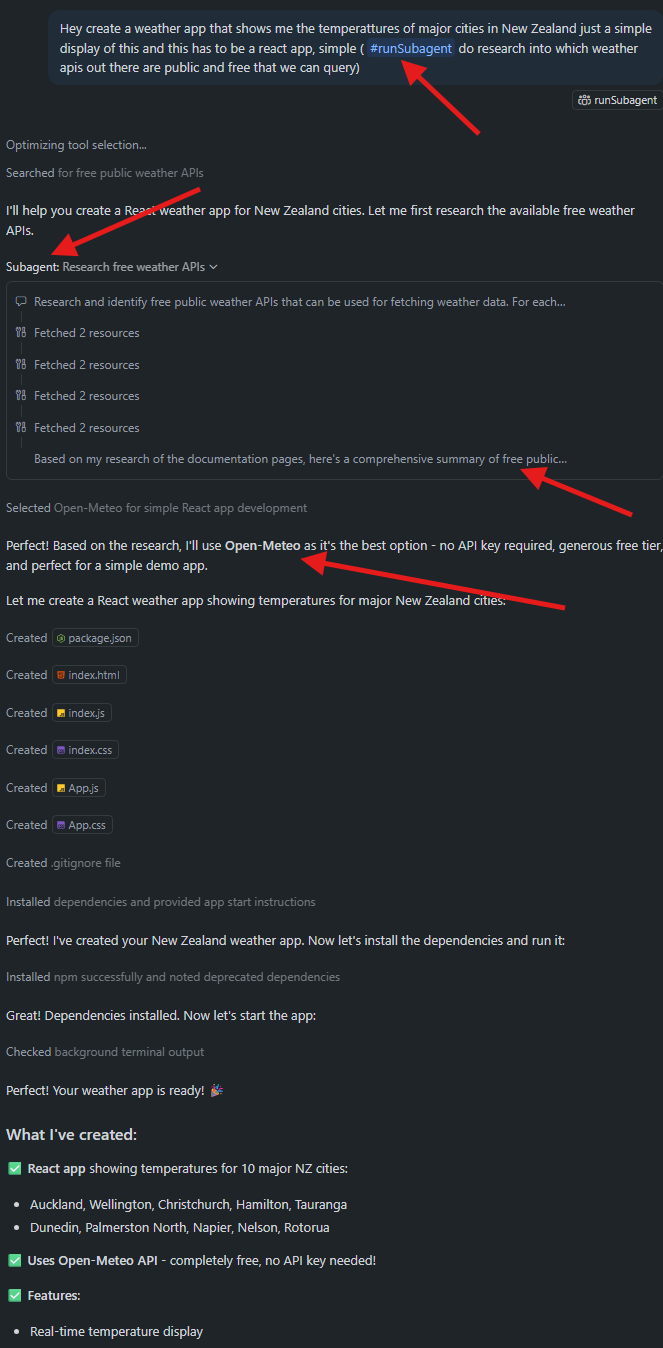
The image above illustrates the sub-agent flow. When you invoke the #runSubAgent tool, it creates a separate context window for the sub-agent. The sub-agent performs all tool calls independently, and only the final result summary is passed back to the main agent. The sub-agent appears as a collapsible tool call in the Chat UI.
Invoking Sub-Agents
Sub-Agents can be triggered in two ways:
Agent-initiated: The main agent autonomously decides to spawn a sub-agent when it recognizes a task that would benefit from context isolation.
User-hinted: You can explicitly request one:
1 | You: Run a subagent to research all the authentication patterns used in this |
Or reference the tool directly: #runSubAgent
The Cost Advantage
If you’re using a 1x premium model, sub-agent calls are effectively free. You can run dozens of sub-agents in parallel without worrying about your premium request budget.
Instead of using one expensive model call that reads 50 files and floods context, spawn multiple cheap sub-agents to research different aspects in parallel, collect their concise summaries, then use a single focused model call for the final implementation.
Orchestration Pattern: Coordinator & Worker
1 | Main Agent (Coordinator): |
What Sub-Agents CAN and CANNOT Do
| ✅ Can Do | ❌ Cannot Do |
|---|---|
| Read files in the workspace | Access the parent agent’s conversation history |
| Run terminal commands | Modify the parent agent’s context |
| Search the codebase | Persist state between invocations |
| Use MCP server tools (inherits parent’s tools) | Run as a standalone session |
| Run in parallel with other sub-agents | Create PRs or branches |
| Return structured results to parent | Directly communicate with the user |
When to Use Which Agent: Quick Decision Matrix
| Scenario | Recommended Agent | Why |
|---|---|---|
| Quick bug fix while coding | Local Agent | Interactive, immediate feedback, full tool access |
| “Explain this code to me” | Local Agent (Ask persona) | Read-only, conversational |
| Plan a multi-file refactor | Local Agent (Plan persona) | Creates structured plan before changes |
| Long-running test generation | Background Agent | Survives VS Code restart, doesn’t block your editor |
| Working on 3 features in parallel | Background Agent | Multiple parallel sessions with Worktree isolation |
| Well-defined GitHub issue | Coding Agent | Fully autonomous, creates PR, runs while you’re away |
| “Fix this overnight” | Coding Agent | Asynchronous cloud execution |
| Research codebase patterns | Sub-Agent | Context-isolated research |
| Complex task with pre-research | Sub-Agent → Parent | Research in sub-agents, implement in main agent |
| Start local, realize it needs a PR | Background → /delegate → Cloud | Seamless hand-off |
Best Practices
| ✅ Do | ❌ Don’t |
|---|---|
| Match agent type to task size: Local for < 5 min, Background for 5-30 min, Coding Agent for 30+ min | Use the Coding Agent for exploratory work (it creates a PR every time) |
| Use sub-agents for research-heavy tasks to keep main context clean | Ignore context window limits; if the agent starts “forgetting,” offload research to sub-agents |
| Default to 1x premium models for sub-agents (research rarely needs the most powerful models) | Run Coding Agent tasks for multi-repo changes (it’s scoped to a single repo per task) |
| Write clear, detailed issue descriptions for the Coding Agent with acceptance criteria and edge cases | Use a single long agent session for everything; break complex work across agent types instead |
Use the Research-Delegate Pipeline: Ask → Plan → Background + Sub-Agents → /delegate → Cloud PR |
Key Takeaways
- Local Agent is your interactive coding partner: versatile, full-featured, but tied to your VS Code session
- Coding Agent (Cloud) is your autonomous worker: fire and forget, creates PRs, runs on GitHub’s infrastructure
- Background Agent (Copilot CLI) is the bridge: local execution with persistence, parallelism, and cloud delegation
- Sub-Agents are the context management secret weapon: keep your main agent’s context clean while parallelizing research and analysis
- Cost optimization is key: use 1x premium models for sub-agents and routine tasks, reserve premium models for complex work
- Hand-off between agents is seamless: start local, escalate to background, delegate to cloud as needed
The most effective Copilot users don’t just use one agent type. They orchestrate all four to match the right tool to the right task.
References
Image Credits:
- Main image generated by GPT-Image-1.5
The Four Types of GitHub Copilot Agents: Local, Background, Cloud, and Sub-Agents Explained